WordPress is flexible enough to power almost any kind of website, from a simple blog to an ecommerce store with thousands of products. But a WordPress site becomes truly reliable when you add the right plugins for SEO, speed, security, backups, and lead generation.
Here’s the big mistake many people make: they install plugins based on popularity, not purpose. That often leads to slow load times, plugin conflicts, broken layouts after updates, and security risks.
This 2026 checklist will help you pick essential WordPress plugins the smart way. You’ll learn what each plugin category does, why it matters, how to choose safely, and how to build a clean plugin stack that supports rankings, performance, and growth.
Before you install anything, use this plugin quality checklist
If you want long-term stability, use this quick checklist every time you consider a plugin:
Update frequency
Avoid plugins that haven’t been updated in a long time. Frequent updates usually mean better compatibility and faster fixes.
Developer reputation
Choose plugins from developers or teams with a history of maintaining products long-term.
Support and documentation
Good plugins have clear setup instructions, troubleshooting docs, and active support channels.
Compatibility
Check your WordPress version, PHP version, and theme builder compatibility.
Performance impact
Some plugins add scripts site-wide even when you don’t use them on every page. Prefer plugins that load assets only where needed.
Feature overlap
One plugin per job is the safest rule. Overlap causes conflicts and unnecessary code.
Security history
A plugin can be popular and still risky. You’re looking for consistent maintenance and responsible patching.
The essential plugin categories most WordPress sites need
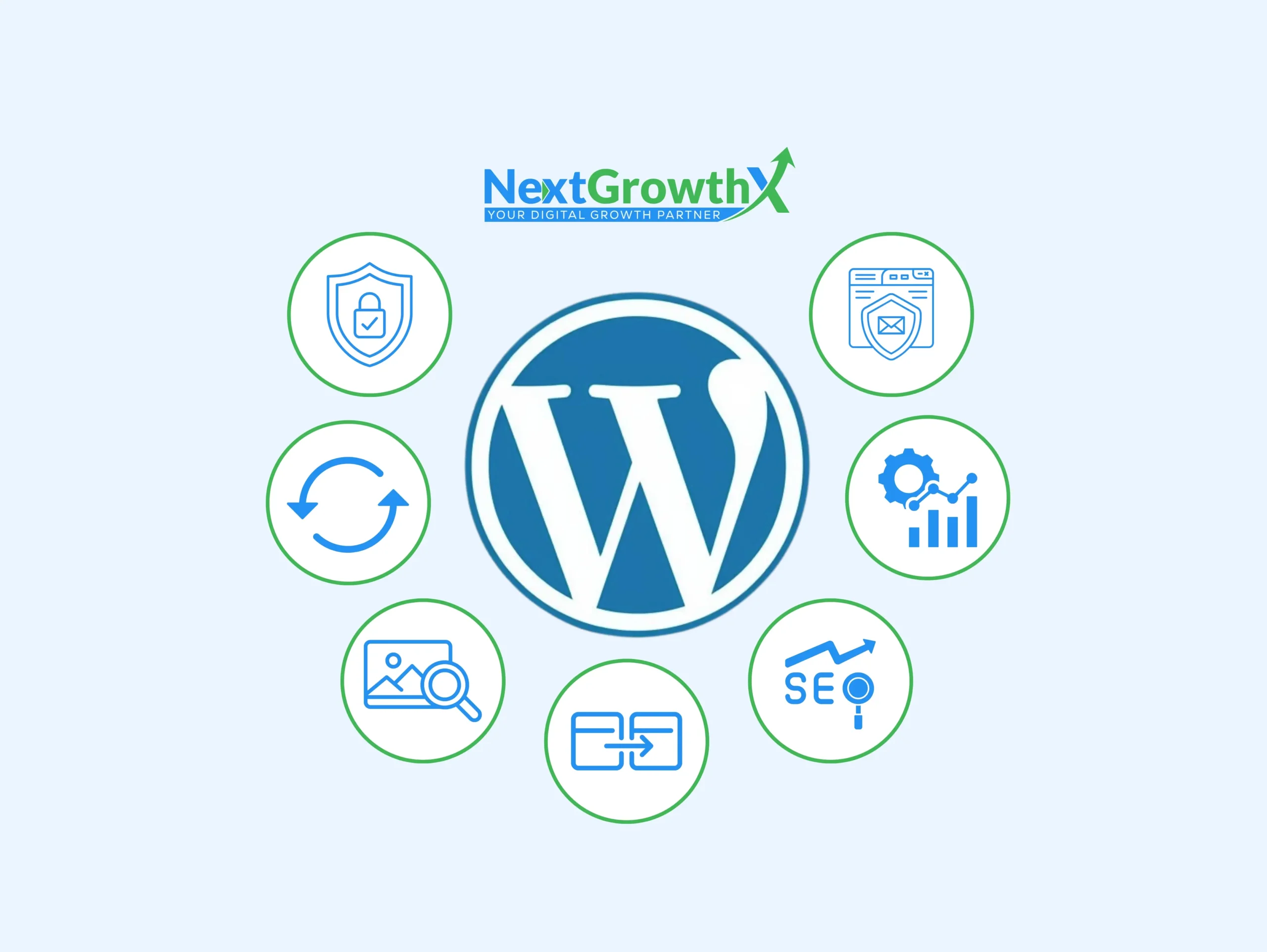
Most sites do best with one strong plugin in each core category:
- SEO
- Security
- Caching and performance
- Backups
- Forms
- Image optimization
- Spam protection
Then add optional categories if your site needs them:
- Redirect management
- Analytics and tracking
- Search enhancement for content-heavy sites
- Staging for safer updates
- Email deliverability (SMTP) for reliable form emails
Now let’s walk through each one with practical guidance.
01. WordPress SEO plugins for higher rankings and better clicks
WordPress SEO plugins help you control how your site appears in Google and other search engines. They also help prevent technical SEO mistakes that silently block rankings.
In 2026, an SEO plugin is essential because it gives you control over:
- SEO titles and meta descriptions (the text people see in Google)
- Indexing settings so important pages aren’t accidentally set to noindex
- XML sitemaps so search engines can discover your pages faster
- Canonical URLs to reduce duplicate content problems
- Structured data (schema) to help Google understand your content type
What to look for in WordPress SEO plugins:
- Simple editing of SEO titles and meta descriptions
- Automatic sitemap generation
- Schema support for common page types
- Easy indexing controls
- Clean integration with caching and performance tools
- Redirect management or compatibility with a redirect plugin
Popular options many sites use:
Important SEO plugin rule
Use only one SEO plugin. Two SEO plugins often cause duplicate schema, duplicate sitemaps, and conflicting metadata.
Quick SEO setup tips that make a difference:
- Set one preferred site version (https with or without www)
- Turn on XML sitemaps and submit them in Google Search Console
- Write unique meta titles and descriptions for your most important pages
- Make sure category and tag archives are handled correctly to avoid thin pages
- Add schema only where it’s accurate, not everywhere
02. WordPress security plugins that reduce hacks and downtime
WordPress sites are attacked constantly, mostly by automated bots scanning for weak logins and known plugin vulnerabilities. Security isn’t only for big sites. Even small business sites get targeted because bots don’t care how big you are.
A strong security plugin helps with:
- Firewall or threat blocking
- Login protection (limit login attempts, block suspicious IPs)
- Malware scanning
- File integrity monitoring (alerts if critical files change)
- Security hardening recommendations
What to look for in WordPress security plugins:
- A firewall or strong blocking rules
- Malware scanning with clear reports
- Login security features and two-factor authentication support
- Alerts for outdated plugins and themes
- Easy-to-understand settings (security tools are useless if they’re too complex)
Popular options:
Practical security checklist beyond plugins:
- Use strong passwords and never reuse them
- Limit admin users and remove old accounts
- Keep WordPress, themes, and plugins updated
- Disable unused plugins and delete them (inactive plugins can still be a risk)
- Use a secure hosting provider and SSL
- Enable two-factor authentication for admins
03. WordPress caching plugin for speed and Core Web Vitals
Speed is one of the biggest SEO and conversion factors. A slow site loses visitors, leads, and sales. A WordPress caching plugin helps your pages load faster by reducing server work and serving optimized versions of your content.
A good WordPress caching plugin can improve:
- Largest Contentful Paint (LCP)
- Time to First Byte (TTFB)
- Overall page load time
- User experience on mobile
What to look for in a WordPress caching plugin:
- Page caching and browser caching
- Minification options for CSS and JavaScript
- Lazy loading support for images and embeds
- Option to delay non-critical JavaScript
- Compatibility with your host and CDN
- Simple controls that don’t require constant tweaking
Popular options:
How to avoid caching mistakes:
- Never run two caching plugins together
- Test your key pages after enabling minification and delay JS
- If something breaks, disable one feature at a time until it’s stable
- Always test on mobile and desktop
Speed testing basics you should do after setup:
- Test homepage, a blog post, and a contact page
- Check if forms still submit correctly
- Check if sliders, menus, and popups still work
- Check if pages look correct while logged out (caching behaves differently)
04. Backup plugins to protect your site from disasters
Backups are your safety net. If an update breaks your site, if your host fails, or if your site gets hacked, backups prevent you from rebuilding everything from scratch.
A backup plugin should do:
- Automated scheduled backups
- Full backups including database and files
- Off-site storage (Google Drive, Dropbox, cloud storage)
- Easy restore process
- Clear logs of backup history
Popular options:
Backup best practice:
Store backups off-site. Backups stored only on your server can disappear if the server fails.
How often should you backup?
- Small brochure websites: weekly is usually fine
- Blogs with frequent posts: daily or every few days
- Ecommerce sites: daily at minimum, often real-time if possible
05. Contact form plugins for leads, quotes, and bookings
Forms are often the main conversion point on a website. If your contact form breaks or your emails don’t deliver, you lose leads without realizing it.
A form plugin helps you build:
- Contact forms
- Quote request forms
- Consultation forms
- Multi-step lead forms
- Payment or booking forms (depending on your needs)
What to look for:
- Mobile-friendly forms
- Reliable email notifications
- Spam protection options
- Integrations with email marketing and CRM tools
- Conditional logic if you need advanced workflows
Popular options:
Form improvement tips that increase conversions:
- Keep the form short (name, email, message is enough for many sites)
- Use multi-step forms only when needed
- Add clear confirmation messages after submission
- Make sure your form works on mobile without zooming
06. Image optimization plugins to improve speed without losing quality
Images are often the biggest files on a page. If you upload huge images directly from a phone or designer export, your site can become slow even with a caching plugin.
Image optimization plugins help by:
- Compressing images
- Converting images to modern formats like WebP or AVIF
- Resizing images appropriately
- Optimizing older images in bulk
What to look for:
- Automatic compression on upload
- Bulk optimization for existing media
- WebP or AVIF conversion
- Compatibility with your caching plugin
- No unnecessary heavy scripts
Popular options:
One simple rule that improves speed instantly:
Upload images at the correct size. Compression helps, but oversized images still slow your pages down.
07. Spam protection plugins to stop junk submissions and bot traffic
Spam wastes your time and can damage your site’s trust signals if comments are filled with nonsense. If your site uses forms, spam protection is essential.
Spam protection helps with:
- Blocking bot form submissions
- Reducing spam comments
- Preventing fake registrations (if you allow accounts)
- Reducing brute-force behavior (in some cases)
Popular options:
Best practice:
Use the lightest option that actually solves your spam problem. Overly aggressive spam tools can block real users if configured poorly.
08. Redirect management plugin to protect SEO during changes
Redirects are essential when you:
- Change a URL slug
- Delete an old page
- Merge content
- Migrate your site
- Fix broken links that users or Google still visit
A redirect plugin helps you:
- Create 301 redirects easily
- Track 404 errors
- Preserve link equity from older pages
- Keep users from landing on dead pages
Popular options:
- Redirection
- Some SEO plugins also include redirect tools
Redirect tip:
Always redirect an old page to the most relevant new page, not just the homepage. Relevance helps preserve SEO value.
09. Analytics and tracking tools to improve content and conversions
You can’t grow what you can’t measure. Analytics tells you which pages bring traffic, which keywords drive visitors, and where users drop off.
Most websites should track:
- Traffic sources
- Top landing pages
- Time on page and engagement
- Conversions (form submissions, calls, purchases)
- Search performance via Google Search Console
Popular options:
- Site Kit by Google
- Lightweight analytics dashboards depending on your setup
Tracking tip:
Don’t overload your site with multiple tracking plugins. Use a clean setup and confirm it’s working.
10. Search plugins for content-heavy sites and stores
Default WordPress search is basic. If your site has lots of blog posts, documentation, products, or resources, improving search can increase engagement and reduce bounce rate.
Search plugins help with:
- More relevant search results
- Partial matching and better handling of typos
- Searching custom post types and custom fields
- Better experience for ecommerce and knowledge bases
Popular options:
Even small differences can reduce your chances of showing in the Local Pack.
Important note:
Some search plugins can increase database usage. If you have a large site, choose carefully and monitor performance.
11. Staging plugins for safer updates and testing
Staging is a copy of your live site where you can test changes safely. This is extremely important for websites that generate leads or revenue.
Staging helps you test:
- Theme updates
- Plugin updates
- Design changes
- New features
- Troubleshooting without breaking the live site
Popular options:
- WP Staging
- WP Stagecoach
- Or staging features provided by your hosting provider
Staging rule:
Test updates on staging first whenever possible, then push changes to live after confirming everything works.
12. Email deliverability plugin (SMTP) so form emails don’t go missing
Many WordPress sites lose leads because form emails never reach the inbox. This happens because default WordPress email sending can fail or get flagged as spam.
An SMTP plugin helps:
- Improve reliability of email sending
- Authenticate emails through a proper mail service
- Reduce missing lead notifications
If you’ve ever had a client say “I submitted the form but got no reply,” you should take this seriously. Reliable email delivery is essential for lead generation sites.
A recommended lean plugin stack for most websites
If you want a clean setup that covers the essentials, aim for one plugin per category.
- One SEO plugin
- One caching and performance plugin
- One security plugin
- One backup plugin
- One form plugin
- One image optimization plugin
- One spam protection solution
- One redirect manager (if your SEO plugin doesn’t include it)
- Analytics setup (plugin or manual)
- SMTP plugin if you rely on contact forms for leads
That’s usually enough to build a fast, secure, SEO-ready WordPress site without plugin overload.
Common plugin mistakes that hurt Google rankings
- Installing too many plugins without purpose
- Using multiple plugins for the same function (especially caching and SEO)
- Ignoring updates for months
- Keeping unused plugins installed
- Choosing plugins that add heavy scripts site-wide
- Using cracked or nulled premium plugins
If you want stability, keep your plugin list lean and high-quality.
Final Thoughts
The right WordPress Plugins make your website faster, safer, and easier to grow. The wrong plugins create bloat, conflicts, and performance issues that hurt SEO.
This 2026 checklist of Essential WordPress Plugins covers the core categories most sites need. Start with the essentials, keep everything updated, avoid overlap, and test after changes.
Frequently Asked Questions
How many WordPress plugins should I use?
Most sites run well with around 8–20 plugins. Focus on quality and avoid installing multiple plugins that do the same job.
Do WordPress plugins slow down a website?
Some do. Heavy plugins, poor coding, and feature overlap can slow your site. Test speed after installing any new plugin.
Which WordPress plugins are must-haves for a new site?
At minimum: an SEO plugin, caching plugin, security plugin, backup plugin, form plugin, and image optimization plugin.
Is it better to use free or paid WordPress plugins?
Both can be great. Paid plugins often offer better support and features, while well-maintained free plugins work perfectly for many sites.
Should I update plugins regularly?
Yes. Updates improve security and compatibility. Always take a backup before updating, especially on live business sites.
What should I do if two plugins conflict?
Disable one plugin at a time to find the conflict, then replace the problematic plugin with a lighter or more compatible alternative.